

How much of your working day disappears into tasks you’ll have to repeat again tomorrow?
Maybe you’re copying customer details into spreadsheets, sending the same confirmation emails, or checking whether someone followed up on an inquiry. Each task seems small, but together they can pull you away from work that genuinely needs your attention.
That’s where business automation comes in. It uses software to handle certain repeatable steps—like recording a form submission or sending a routine notification—so you don’t have to manage every detail manually.
And getting started doesn’t necessarily mean learning to code, buying expensive tools, or handing decisions over to AI.
In this business automation for beginners guide, you’ll learn what automation means, how a simple workflow works, where it can help, and how to plan your first small, sensible automation—without making your business more complicated.
1. What Is Business Automation?
Business automation means using software or technology to complete repetitive business tasks—or certain steps within a larger process—with less manual intervention. In everyday language, it is a way to let routine work happen without someone having to perform every step by hand.
As IBM explains, automation helps businesses manage repetitive activities and streamline workflows. Depending on the task, it can use:
Predefined rules: Send a notification when a customer submits a form.
Scheduled events: Create a reminder at a set time.
Connected applications: Transfer details from a website form into an approved record.
AI-assisted capabilities: Summarize a customer message for a person to review when appropriate.
Here’s a simple example.
Imagine a small clothing store receiving questions through its website. Instead of someone checking each submission, copying the details, and alerting the owner, a configured workflow could record the inquiry and send a notification.
The owner still reads the message, answers the customer’s specific questions, and handles anything unusual. Someone also needs to test the workflow and check that it continues working correctly.
Business automation isn’t the same as artificial intelligence. Many automations follow straightforward rules and don’t require AI at all. Nor does automation have to replace employees or make an entire business run on its own.
The goal isn’t to automate everything. It’s to make suitable, predictable tasks more reliable while keeping people responsible for decisions that matter.
2. How Does Business Automation Work?
Ever wondered how software knows when to perform a task without someone telling it what to do each time?
The answer is surprisingly simple. Business automation works by following predefined instructions that tell software when to start, what to check, and what action to take.

Triggers, Actions, and Conditions
Most simple automated workflows involve two essential components—a trigger and an action. Some also use conditions to make decisions.
Trigger—What starts the process?
An event that activates the workflow, such as a customer submitting a website contact form.
Action—What happens next?
A task performed by the software, such as recording customer information or sending a notification.
Condition—What needs to be checked?
A rule that determines which action should happen based on specific information.
According to Microsoft Learn, triggers start automated workflows, while actions define what happens afterward. Its guidance on conditions also explains how workflows can follow different paths depending on whether a rule is satisfied.
Here’s a simple customer-inquiry example:
A customer submits a contact form. The software checks whether the required contact details are present.
If the information is complete, the workflow records the inquiry and notifies the business owner. If something important is missing, it flags the submission for manual review instead.
That’s how a basic workflow can respond differently to different situations.
Manual Work vs. Automated Work
Now, imagine how the same process works with and without automation.
Manual Process | Automated Process |
Check new form entries. | Detect new form submissions. |
Copy inquiry details | Record available details automatically. |
Notify the responsible person. | Send an internal notification. |
Check whether the inquiry was handled. | Review status and exceptions |
Notice that automation doesn’t eliminate the need for people. Software can perform routine steps, but someone still needs to respond to customers, review unusual situations, and make sure the workflow operates correctly.
Most importantly, software follows the rules you configure. It doesn’t automatically understand your business requirements or know what should happen when something goes wrong.
Key Takeaway:
A simple automation connects a trigger to one or more actions, sometimes using conditions to determine what happens next. The clearer those instructions are, the easier the workflow becomes to test and manage.
Types of Business Automation Explained Simply
Not all business automation works the same way. Some automations handle one small task, while others connect several activities or support an entire business process.
Understanding the different types of business automation helps you recognize what’s possible without assuming you need complicated technology.

Let’s look at four common approaches and how businesses might use them.
Task Automation
Task automation focuses on completing one specific, repetitive activity with minimal manual effort.
Think about a business owner who regularly forgets to follow up on unpaid invoices. Instead of checking every due date manually, they could configure software to generate a reminder when a payment deadline approaches.
The automation handles one clearly defined task: creating the reminder. The owner can still decide whether to contact the customer and how to handle the situation.
Other examples include sending routine appointment reminders, scheduling recurring reports, or organizing incoming files.
According to IBM’s explanation of task automation, this approach uses technology to perform individual tasks or support larger workflows.
For beginners, task automation is often a practical starting point because the activity is usually easier to understand, test, and supervise than a complicated process.
Workflow Automation
What happens when completing one task automatically isn’t enough?
That’s where workflow automation becomes useful. Instead of handling a single activity, it connects multiple related tasks so information can move through a defined sequence.
Imagine a tutoring business that receives lesson bookings through its website.
When a customer books a lesson, an automated workflow could record the booking, send a confirmation email, and create a reminder for the tutor.
These activities work together because they belong to the same customer-booking journey.
A workflow can also include conditions, such as sending different notifications depending on the selected lesson type.
The main advantage is coordination. Rather than moving information between systems manually, software performs the connected steps according to configured instructions.
However, someone still needs to check failed bookings, scheduling conflicts, or unusual requests that the workflow cannot resolve.
Think of task automation as handling one job, while workflow automation connects several jobs in the right order.
Business Process Automation
Business process automation (BPA) takes a broader approach by automating suitable activities within an overall business process.
A business process is a connected set of activities that produces a particular outcome, such as fulfilling an order, onboarding an employee, or managing a customer account.
For example, consider a small online clothing store.
When someone places an order, several things may need to happen. The business must confirm payment, check product availability, prepare the order, arrange delivery, update records, and communicate with the customer.
Business process automation can connect and coordinate suitable parts of these activities across different applications or departments.
It doesn’t mean every step becomes automatic. Staff may still need to inspect products, pack orders, investigate payment problems, or handle customer complaints.
IBM describes business process automation as using software to streamline complex, repetitive business processes, often involving multiple systems and connected activities.
The important difference is scope: Task automation handles an individual activity, workflow automation connects tasks, and business process automation considers how automation supports a broader operational outcome.
AI-Assisted Automation
Traditional automation generally follows instructions that someone has already defined. But what if a task involves interpreting a message, understanding its meaning, or preparing a response?
AI-assisted automation adds artificial intelligence to certain workflow steps, allowing software to work with information that may not follow a simple, predictable format.
Imagine a small business receiving dozens of customer messages about deliveries, product availability, and returns.
An AI-assisted workflow might summarize incoming messages, suggest categories, or prepare draft replies for staff to review.
For example, a message asking, “Can I exchange this shirt for a different size?” could be identified as a potential exchange-related inquiry.
However, AI-generated results are not automatically correct. The system might misunderstand a request, overlook important details, or produce inaccurate information.
That’s why human review is especially important when responses involve customer commitments, financial matters, personal information, or sensitive decisions.
Microsoft Learn’s guidance on AI-assisted workflows also describes incorporating human approval when reviewing AI-generated content.
Remember: AI is not required for business automation. Many useful automations rely entirely on predictable rules, scheduled events, and connected applications.
Where Does Robotic Process Automation Fit?
You may also encounter the term robotic process automation (RPA).
Despite its name, RPA doesn’t necessarily involve physical robots. It uses software to perform repetitive interactions with computer applications, such as entering information into forms, clicking buttons, or moving data between systems.
For example, an RPA tool might enter approved records into an older business application that lacks a suitable direct integration.
As IBM explains, RPA can automate routine interactions with software interfaces. However, changes to those interfaces can require adjustments to the automation.
RPA is one technology that may support task, workflow, or broader business process automation.
Key Takeaway
These approaches are connected, not mutually exclusive categories. A business process may contain several automated workflows, each performing individual tasks. Some steps might use RPA or AI when appropriate.
You don’t need to master every approach to get started. Begin by understanding the repetitive work you want to improve, then consider the simplest suitable form of automation.
What Are the Benefits of Business Automation?
Running a business involves countless small tasks. While each might take only a few minutes, handling them repeatedly can leave less time for customers, planning, and other important work.
That’s where the benefits of business automation become valuable. By handling suitable routine activities, automation can help businesses work more consistently and stay organized.
According to IBM, automating repetitive processes can improve efficiency, consistency, and accuracy.
Here are four practical ways automation can help small businesses:
- Less Repetitive Work: Software can handle routine activities, such as sending confirmations or reminders, allowing employees to focus on tasks that need personal attention.
- Greater Consistency: Automated workflows follow predefined instructions, helping businesses complete recurring tasks in a more consistent way.
- Fewer Avoidable Manual Errors: Automation can reduce mistakes from repeatedly copying information, although incorrect settings or unreliable data can still cause problems.
- More Organized Operations: Automatic notifications and record updates can help teams coordinate responsibilities and avoid overlooking important steps.
A Practical Example
Imagine a small salon that manually sends appointment reminders to every customer.
Instead, the salon could configure its booking software to send reminders automatically before scheduled visits.
Staff would no longer need to prepare every routine message individually, giving them more time to assist customers. They would still handle rescheduling requests, incorrect contact details, and unusual situations.
Of course, automation doesn’t guarantee better results. Its value depends on how well the workflow is designed, how often it’s needed, whether the software works reliably, and how carefully someone monitors it.
Key Takeaway:
Business automation is most valuable when it solves a real operational problem—not simply because a task can be automated.
Business Automation Example: From Manual Work to a Simple Workflow
What does business automation actually look like in a small business? Imagine a service company that receives customer inquiries through its website.

The Business Problem
Every morning, the owner checks new contact-form submissions, copies customer details into a spreadsheet, sends acknowledgements, and reminds a colleague to follow up.
None of these tasks is particularly difficult. But as inquiries increase, repeating them becomes time-consuming. A missed message or forgotten reminder could also delay a customer response.
The goal isn’t to replace personal customer service. It’s to automate routine steps so people can focus on helping customers.
What the Automated Workflow Could Look Like
- Inquiry arrives: A customer submits the website contact form.
- Information is checked: Software checks whether essential contact details are present.
- Details are recorded: A valid inquiry is saved in an approved spreadsheet or customer system with appropriate access permissions.
- Acknowledgement is sent: If a usable email address is available, the customer receives a brief confirmation—not a promise that their question has been answered.
- Owner is notified: The responsible person receives an alert to review the inquiry.
- A person follows up: A staff member reads the message, answers the question, and records the follow-up status.
The exact setup depends on the capabilities of the website form and connected applications.
This is a hypothetical workflow, not a tested software integration.
What Happens When Something Goes Wrong?
A useful automation needs a plan for unexpected situations—not just a workflow showing what happens when everything goes right.
Situation | Sensible Response |
Contact information is missing | Flag the inquiry for manual review instead of assuming it’s complete. |
The same inquiry arrives twice | Check existing records or submission identifiers before sending duplicate notifications. |
Notification delivery fails | Check the workflow’s error logs or run history and use an alternative review method. |
For example, Microsoft Learn’s guidance on error handling explains how workflows can record failures and trigger notifications when something goes wrong.
Before relying on automation, the owner should decide who monitors failures, how problems will be identified, and how inquiries will be handled manually if the system stops working.
Key Learning:
The real value of automation isn’t simply sending emails or recording information. It’s creating a reliable, connected process that reduces routine work while keeping people responsible for customer decisions.
What Should You Automate First—and What Should Stay Manual?
Just because a task can be automated doesn’t always mean it should be.
Some activities are perfect candidates for automation, while others are better handled by people. And sometimes, simplifying an inefficient process is more useful than automating it.
Before choosing what to automate first, consider how frequently the task occurs, how much effort it requires, whether its steps follow clear rules, and what could happen if something goes wrong.
Microsoft’s automation guidance recommends prioritizing straightforward, repetitive tasks while preserving human involvement where judgment and adaptability are needed.
Here’s a simple way to evaluate different situations:
Situation | Better Starting Approach | Example |
Repetitive task with clear rules | Consider automation. | Routine form-entry notification |
Unnecessary or confusing task | Simplify or eliminate first. | Duplicating information across several records |
Sensitive or judgment-heavy decision | Keep human review. | Resolving a disputed refund |
Infrequent task with complicated setup | Consider remaining manual. | Rare administrative exception |
Repeated task with unreliable information | Fix the process first. | Incomplete customer records |
A Simple Example
Imagine a small salon sending appointment reminders. Once appointments are confirmed, software could send routine reminders using predefined rules. That’s a relatively predictable activity.
Now consider a customer who is upset about being charged incorrectly. An automated system might record the complaint and notify the manager, but understanding the situation and deciding on a fair resolution requires human attention.
The difference isn’t simply whether technology can perform the task. It’s whether automation would be useful, reliable, manageable, and appropriate for the risk involved.
Key Takeaway:
Your best first automation is usually a task that’s repetitive, predictable, low-risk, and easy to test. Start there rather than trying to automate every part of your business.
Create Your First Automation Brief
Before opening an automation tool or connecting different apps, ask yourself one simple question: What exactly do I want this automation to accomplish?
It’s tempting to start exploring software immediately. But without a clear plan, you might end up automating unnecessary steps or creating a workflow that’s difficult to manage.
A better starting point is a First Automation Brief—a simple, one-page plan that describes the task, what should happen, and how you’ll know whether it works.
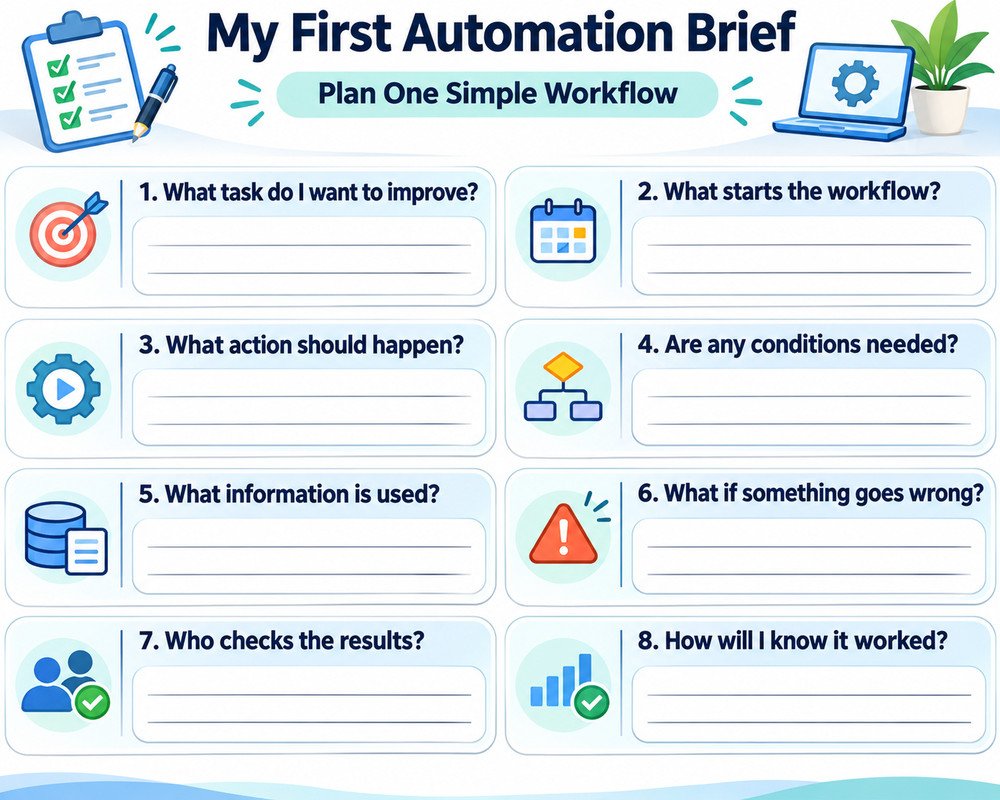
The First Automation Brief
Use this beginner-friendly business automation planning template to organize your ideas before choosing software.
Question | Your Answer |
What repetitive task do I want to improve? | |
What event should start the workflow? | |
What action should software perform? | |
Are any conditions required? | |
What information will the workflow use? | |
What happens if something goes wrong? | |
Who is responsible for checking it? | |
How will I know whether it worked? |
You don’t need technical terminology to complete this worksheet. Describe each step in everyday language, just as you would explain the task to a new employee.
A Completed Example
Imagine a small home-service business that receives customer inquiries through its website. The owner wants to stop checking the contact form repeatedly throughout the day.
Here’s how the business might complete a simple automation brief:
- Problem: Customer inquiries require repeated manual checking.
- Trigger: A customer submits the website contact form.
- Action: Send an internal notification to the responsible person.
- Condition: Required contact fields must be present.
- Information Used: Customer name, contact details, and inquiry message.
- Failure Response: Flag incomplete submissions or failed notifications for manual review.
- Responsible Person: The business owner checks notifications and exceptions.
- Success Check: A test submission generates one correct notification containing the expected details.
Notice that this plan doesn’t require choosing a software platform yet. It simply defines what the automation should do, who remains responsible, and what a successful result looks like.
Testing is particularly important. Microsoft Learn recommends checking automated workflows to confirm that their actions and connections behave as expected.
Once your brief is complete, you’ll have a clearer idea of what features to look for and what needs testing before using the workflow in your business.
Key Takeaway:
A well-defined automation idea is more valuable than opening a software account without a clear purpose. Plan the task first, then choose the technology that fits it.
How to Start Automating Your Business: Five Beginner Steps
You’ve identified a repetitive task and outlined what you’d like to automate. But how do you turn that idea into something that actually works?
The good news is that you don’t need to automate your entire business at once. Starting with one manageable task gives you an opportunity to learn, test, and improve without creating unnecessary complications.
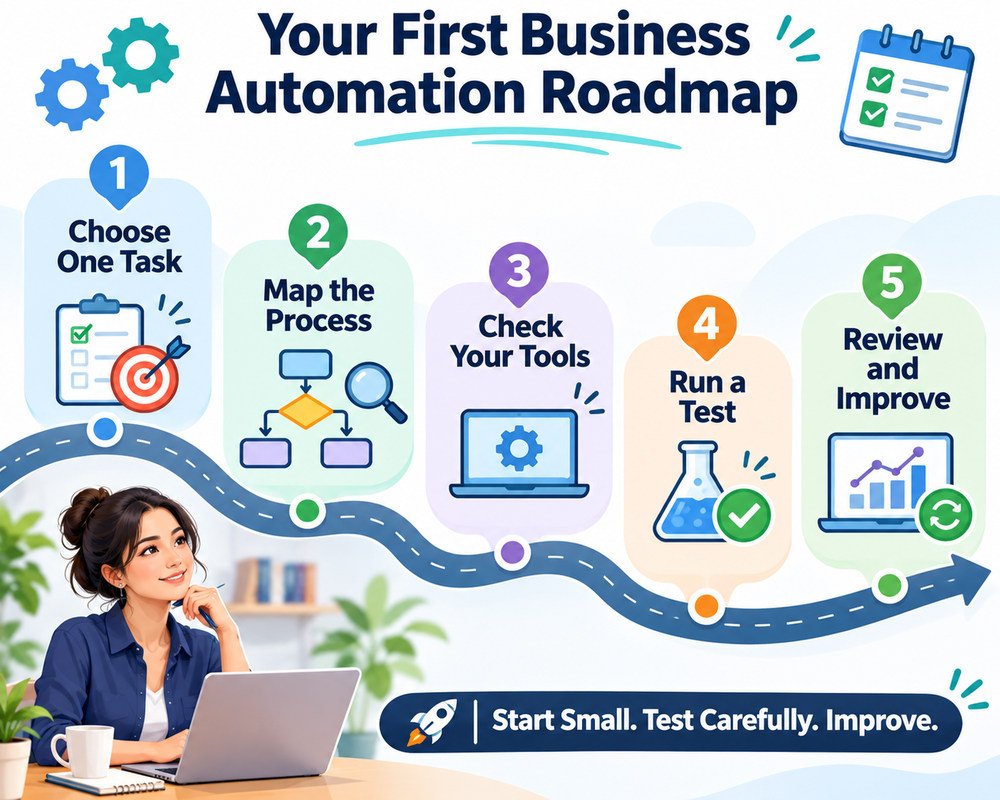
Here are five practical steps to help you get started.
Step 1 — Choose One Small Task
Start with something repetitive, predictable, and relatively low-risk.
For example, instead of automating your entire customer service process, begin with sending an internal notification whenever someone submits your website contact form.
Choose a task with a clear outcome so you can easily recognize whether the automation works.
Avoid starting with sensitive financial decisions or complicated activities that require personal judgment.
Step 2 — Describe the Current Process
Before changing anything, understand how the task currently works.
Ask yourself: What starts the process? Who handles it? What information is needed? And what should happen when it’s completed?
For a contact-form inquiry, the process might involve opening a message, checking customer details, and notifying the responsible employee.
Understanding the manual process helps you identify which steps software can handle and which still need human attention.
Step 3 — Check the Software You Already Use
You may not need another application to begin.
Check whether your website platform, email service, booking system, or other existing software includes automation features.
For example, some website form tools can send internal notifications when a new inquiry arrives.
Before connecting additional services, review their features, permissions, setup requirements, and possible ongoing costs.
The goal is to find a suitable solution—not the most complicated one.
Step 4 — Build a Small Test
Now it’s time to check whether your proposed workflow behaves as expected.
Use sample information rather than real customer data. For a contact-form notification, submit a test inquiry and check whether the correct person receives the expected details.
Don’t stop after one successful attempt. Try submitting incomplete information and confirm that the system handles it appropriately.
If notifications could reach real customers, use a safe testing setup first.
Microsoft Learn emphasizes testing automated workflows to verify that their actions and connections work correctly.
A successful test should confirm the result—not simply show that the automation ran.
Step 5 — Review, Monitor, and Improve
Once your workflow passes its tests, begin using it on a limited scale.
Check whether notifications arrive correctly, look for missed or duplicate actions, and decide who will investigate failures.
Keep a manual backup process so important tasks don’t get overlooked if the automation stops working.
Microsoft’s workflow monitoring guidance also emphasizes regularly reviewing automated processes rather than assuming they’ll continue working indefinitely.
As you gain confidence, improve the workflow based on actual results.
Practical Takeaway:
Your first business automation doesn’t need to transform your entire operation. It only needs to solve one clearly defined problem reliably, with the right people still in control.
What Are the Costs, Risks, and Limitations of Business Automation?
Business automation can make everyday work easier, but it’s not always free, error-proof, or completely hands-off.
Before automating a task, it’s worth understanding what the system may cost, what could go wrong, and how you’ll keep it running reliably.
Costs and Maintenance
Some applications already include basic automation features, so you may not need to purchase additional software.
However, more advanced workflows can involve subscription fees, usage limits, paid integrations, and setup costs. You’ll also need time to configure, test, and maintain them.
For example, an email automation might work perfectly at first but stop when an integration disconnects, or a service reaches its usage limit.
Microsoft Learn explains that automated workflows can have different usage and performance limits depending on the software license.
The real cost of automation includes both money and the ongoing effort needed to keep it working.
Data Protection, Errors, and Human Oversight
Automation often handles business information, including customer names, email addresses, and order details. That makes data protection and access permissions particularly important.
Imagine configuring a workflow to notify your sales manager whenever a customer submits an inquiry. If the recipient’s email address is entered incorrectly, customer information could be sent to someone who shouldn’t receive it.
To reduce such risks, test workflows with non-sensitive sample information, verify notification recipients, and give connected applications only the permissions they actually need.
The National Institute of Standards and Technology (NIST) provides practical cybersecurity guidance to help small businesses understand and manage these risks.
Some decisions also need human approval, especially those involving payments, sensitive customer information, or unusual complaints.
Key Takeaway:
The goal isn’t to automate as many tasks as possible. It’s to build reliable, secure, and manageable workflows that solve genuine problems while keeping people responsible for important decisions.
Frequently Asked Questions
1. Can I Automate Business Tasks Without Coding?
Yes. Many business applications include built-in features for reminders, notifications, or record updates. No-code tools can also connect applications through visual steps instead of traditional programming.
For example, you might set a form submission to notify your team automatically.
However, no-code doesn’t always mean no setup. Complex connections, unusual data formats, or security requirements may still need technical assistance.
Start with something your existing software can support. Microsoft Learn provides an example of creating automated workflows without traditional coding.
2. Is Business Automation the Same as Artificial Intelligence?
No. Business automation doesn’t necessarily use AI.
A rule-based workflow can send an appointment reminder at a scheduled time without interpreting anything.
AI-assisted automation is different: it might summarize a long customer message or suggest a reply for someone to review.
Both can fit into the same business process, but AI introduces additional concerns about accuracy and oversight.
Choose AI only when the task genuinely benefits from it, rather than assuming every automation needs artificial intelligence.
3. Can I Start Business Automation for Free?
Sometimes. Your current website, email, or booking software may already include basic automation features.
Some automation platforms also provide limited free options, though features, usage allowances, and eligible integrations vary. Microsoft Learn documents how free and paid capabilities can differ.
Before signing up, check what your task requires and whether the available option covers it.
Remember that setup, testing, and maintenance take time even when the software itself costs nothing.
4. What Happens If an Automated Workflow Stops Working?
An automation can fail because a connection expires, required data is missing, or an application changes.
Don’t assume a workflow is working just because it was activated.
Check its run history or error messages when available, and enable failure alerts if your software supports them.
Assign someone to investigate problems and keep a manual way to handle essential tasks.
Microsoft’s workflow troubleshooting guidance explains how to identify failed steps and investigate common connection issues.
5. How Do I Know Whether My Automation Is Successful?
Compare what you intended the workflow to do with what actually happened.
For a contact-form notification, check whether each valid test inquiry reaches the correct person, whether messages are missed or duplicated, and how often someone must correct an error.
You can also review how much manual effort the process still requires, including monitoring.
Success means reliably solving the original problem, not simply recording a high number of automated runs.
Start Small and Automate With Purpose
You don’t need complicated software—or a plan to automate your entire business—to begin. Useful business automation often starts with one repetitive task and a clear, manageable goal.
Think about the work you repeat every day. Choose one low-risk activity, complete the First Automation Brief, and decide what should trigger the workflow, what it should accomplish, and who will check the results. Then test it with sample information before relying on it.
Successful automation isn’t about removing people from every decision. It’s about handling routine work reliably while keeping human judgment where it matters.
For your next steps, explore Digital Growth Flow’s upcoming guides to business process automation and choosing tasks to automate once they’re published. Our planned Business Automation for Beginners eBook will offer expanded worksheets and planning exercises.
